

RIGN demo: the RIGN Dashboard, the all-in-one restaurant POS and Venue Control
Control everything.
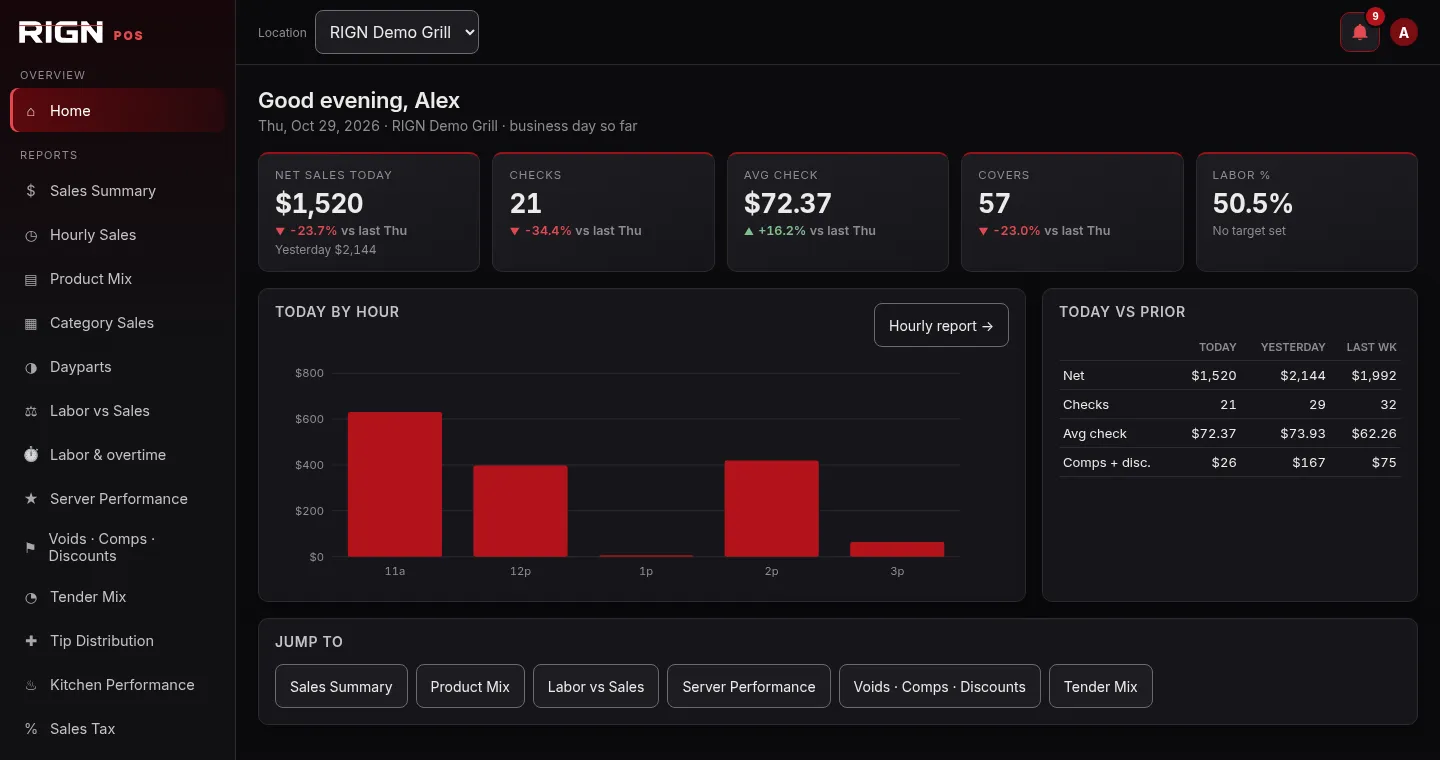
The RIGN back office: today's sales and labor at a glance, plus every report, the schedule, tips, menu, staff and Venue Control in one place.
- Reports
- Scheduling
- Tip distribution
- Menu
- Staff & roles
- Alerts
- Server sections
- Venue Control
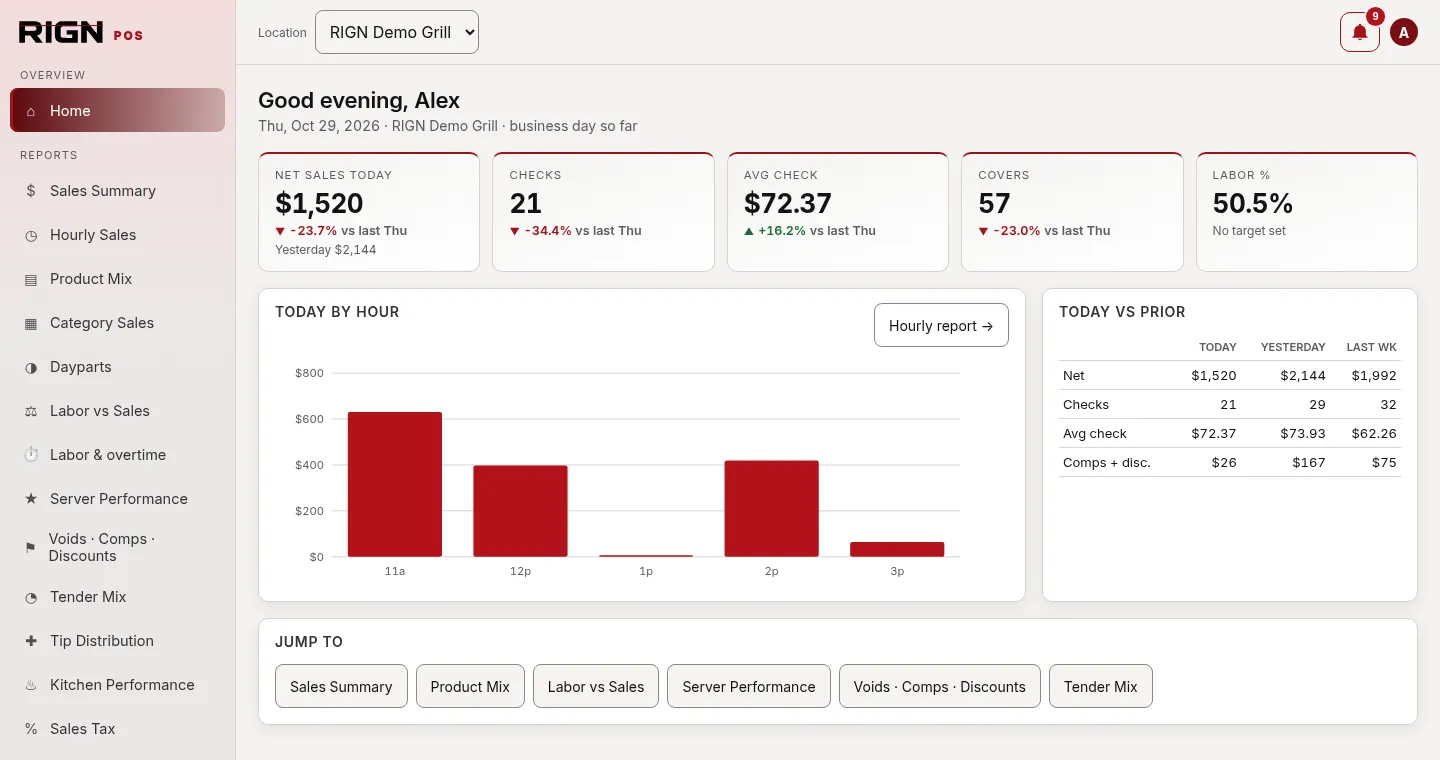
POS, scheduling, tips and payroll-ready reports, in one system.
The register, kitchen screens, schedule, tip distribution and reports share the same data, so nothing is entered twice.
- Register & floor
- KDS
- Scheduling
- Tip distribution
- Team chat
- Reports
- Venue Control
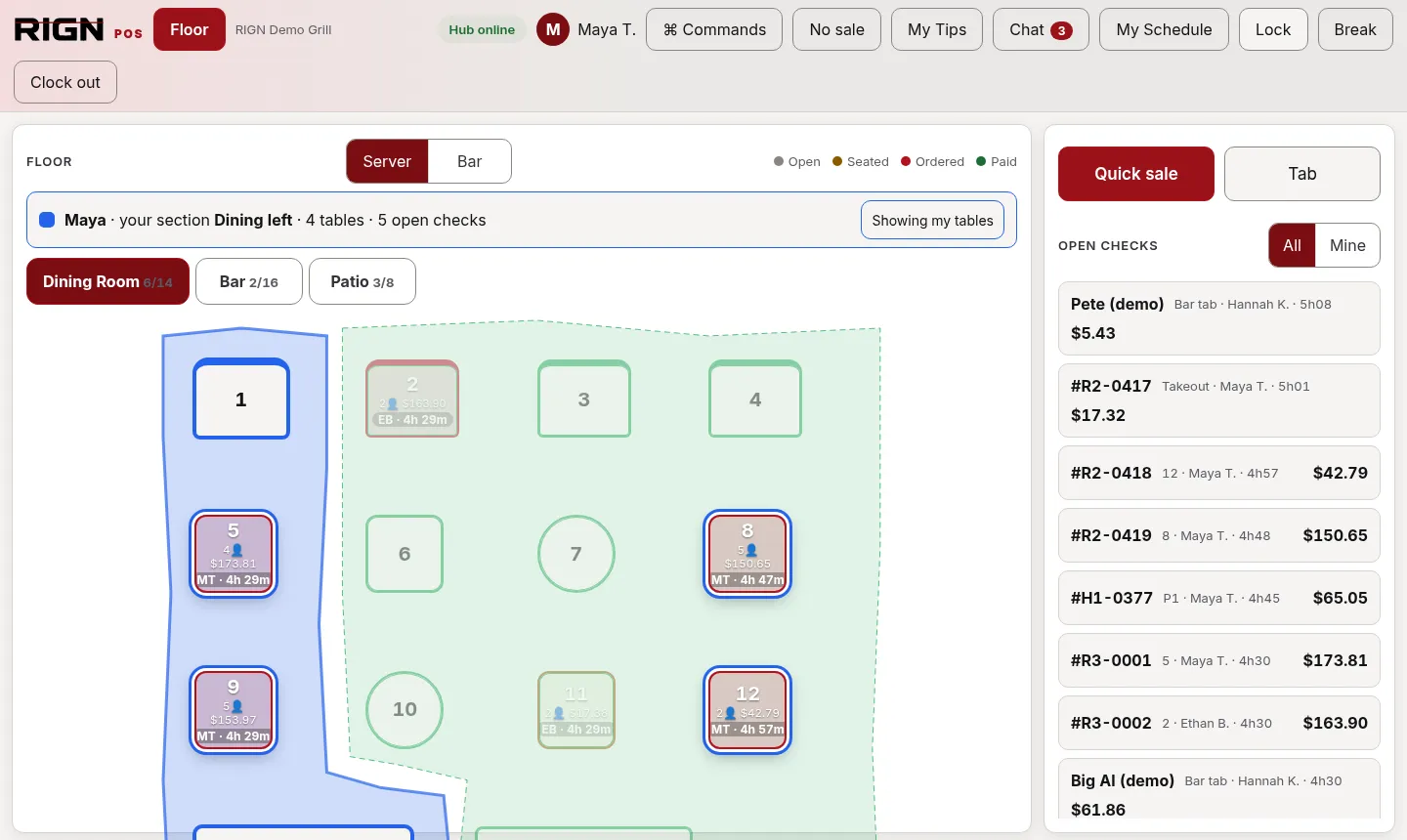
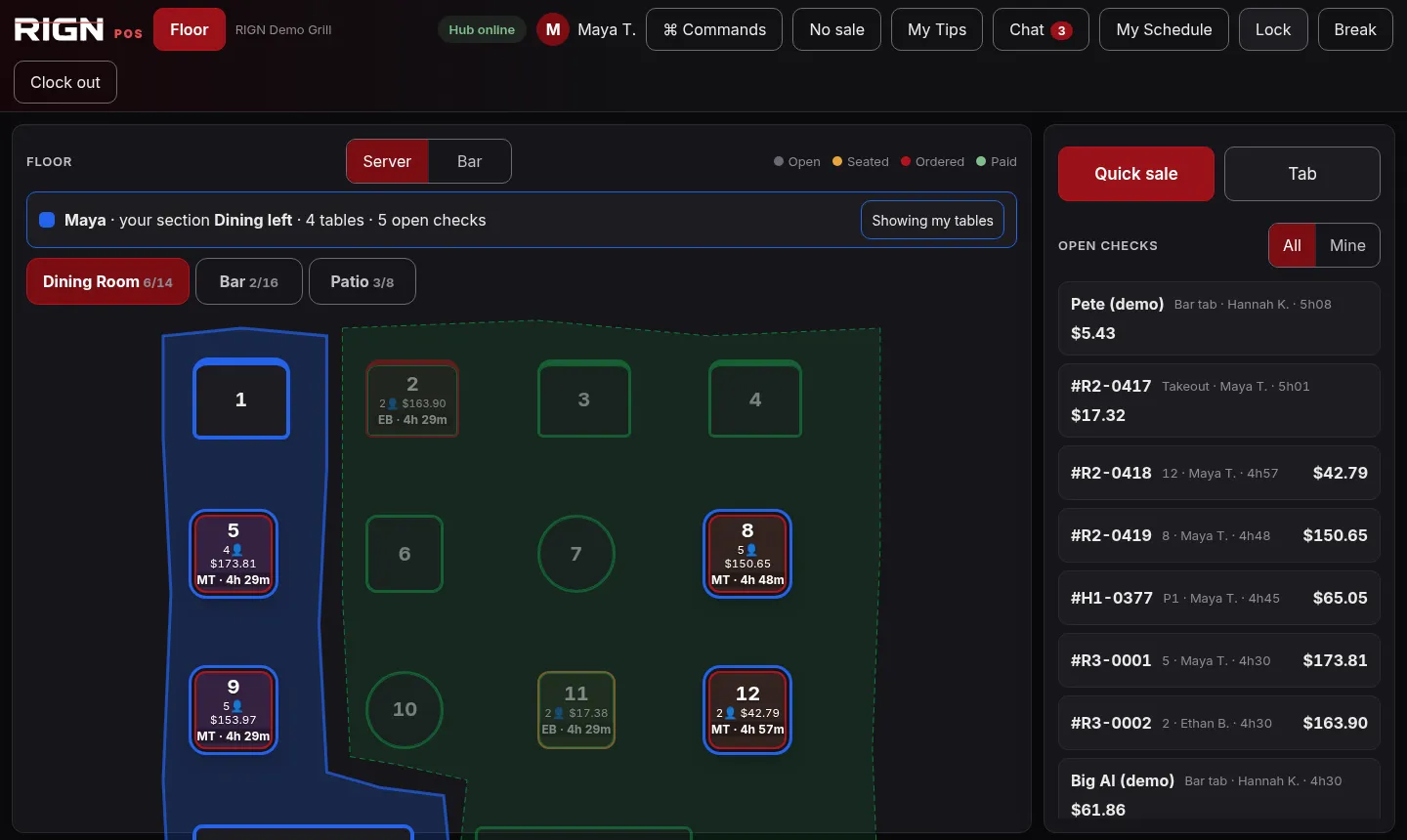
- Server sections and active tablesEach server's section is shaded on the floor plan, and their open tables light up with guests, total and time seated.
- Checks, payments and KDSTables, bar tabs, splits and checkout with tips. Orders go straight to kitchen screens by station.
- Tip distributionTips split by your rules and paid out, with each server's tips on their own phone.
- Scheduling with manager alertsBuild the week with labor cost as you go, plus alerts for overtime and call-outs.
Run every TV, audio zone and source from your POS.
Venue Control is built into the RIGN back office: the bar's TVs, DirecTV boxes and sound, all on one screen.
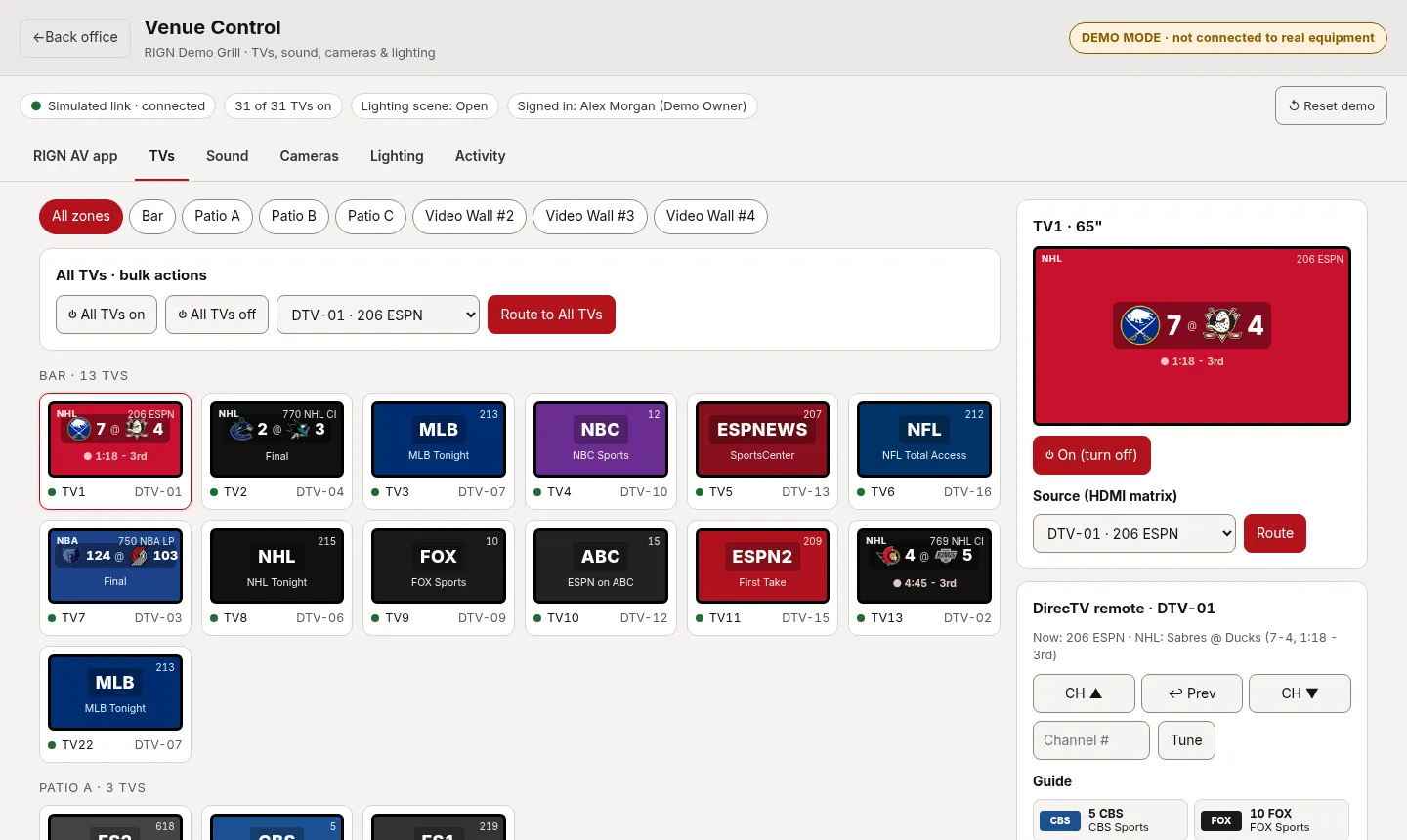
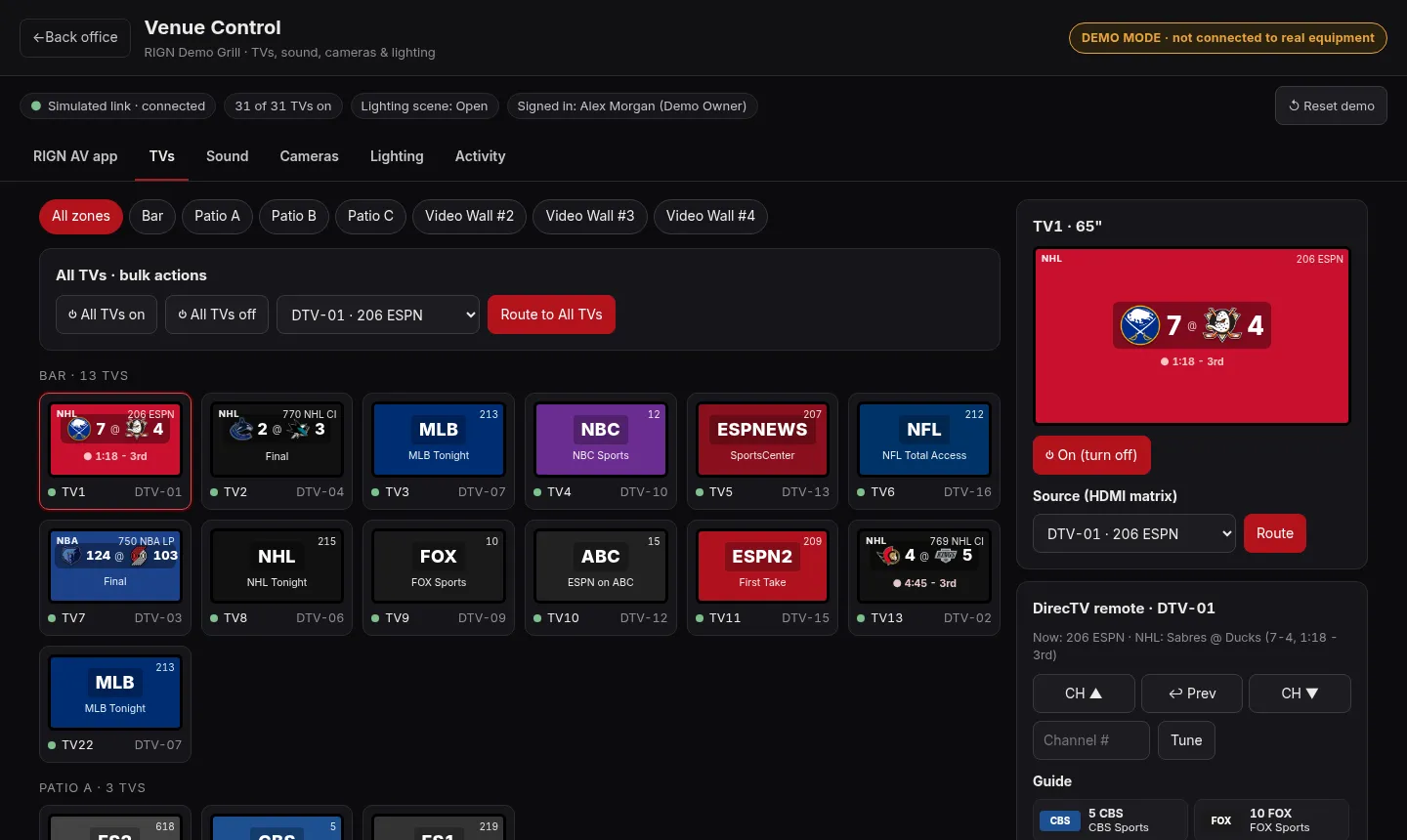
- TV mapEvery TV on a floor plan of the bar, dining room and patio. Tap one to change what it shows, or send a game to several at once.
- DirecTV built inChannel guide, full remote and sports favorites for every box, routed to any screen.
- Audio zonesSet each zone's volume inside the owner's house limits, switch its source, or fade smoothly to another one.
- Lock switch and activity logLock the controls so nothing changes until you unlock them. Every command is logged with who sent it and when.
Also in the demo: saved presets, a game-day schedule, simulated cameras and lighting scenes. Simulated: not connected to real equipment.
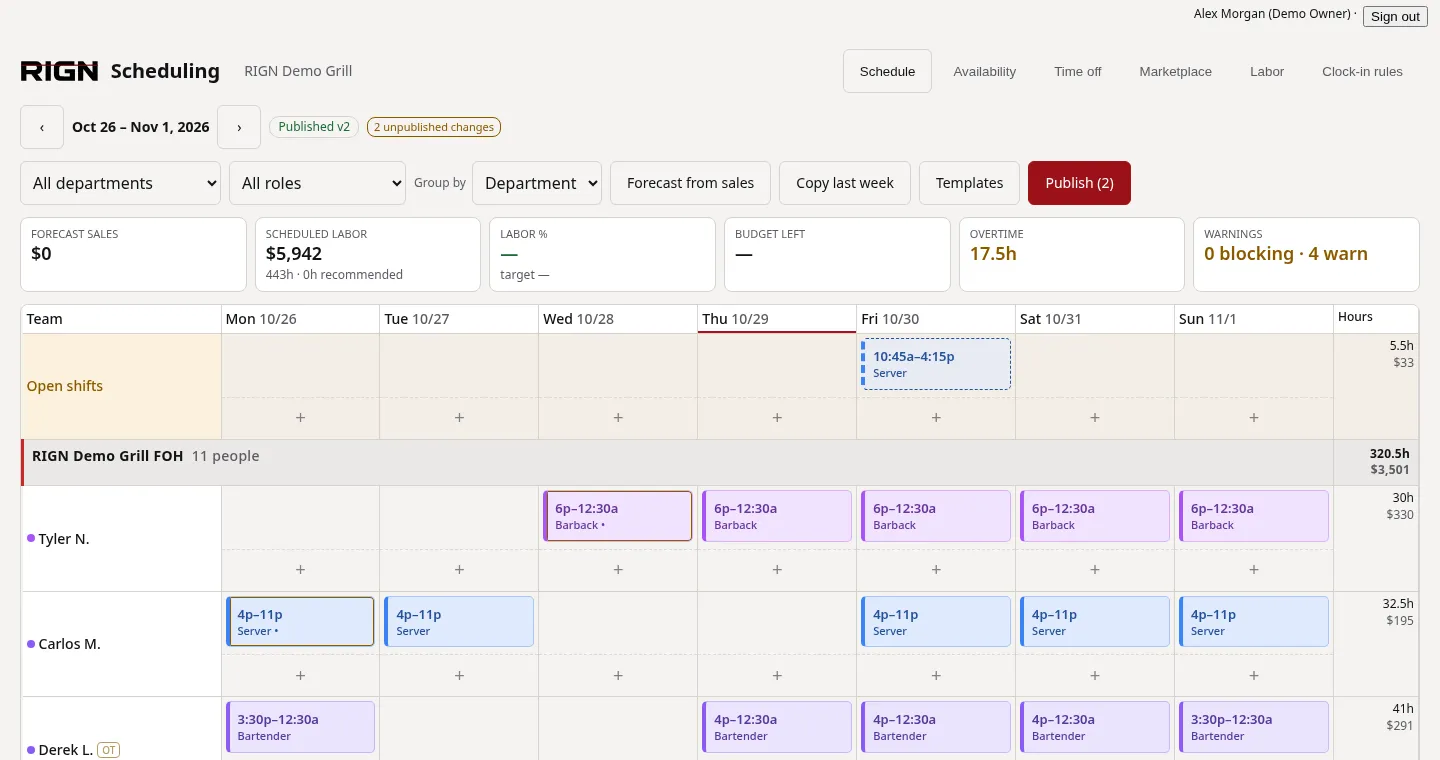
The whole week, one screen.
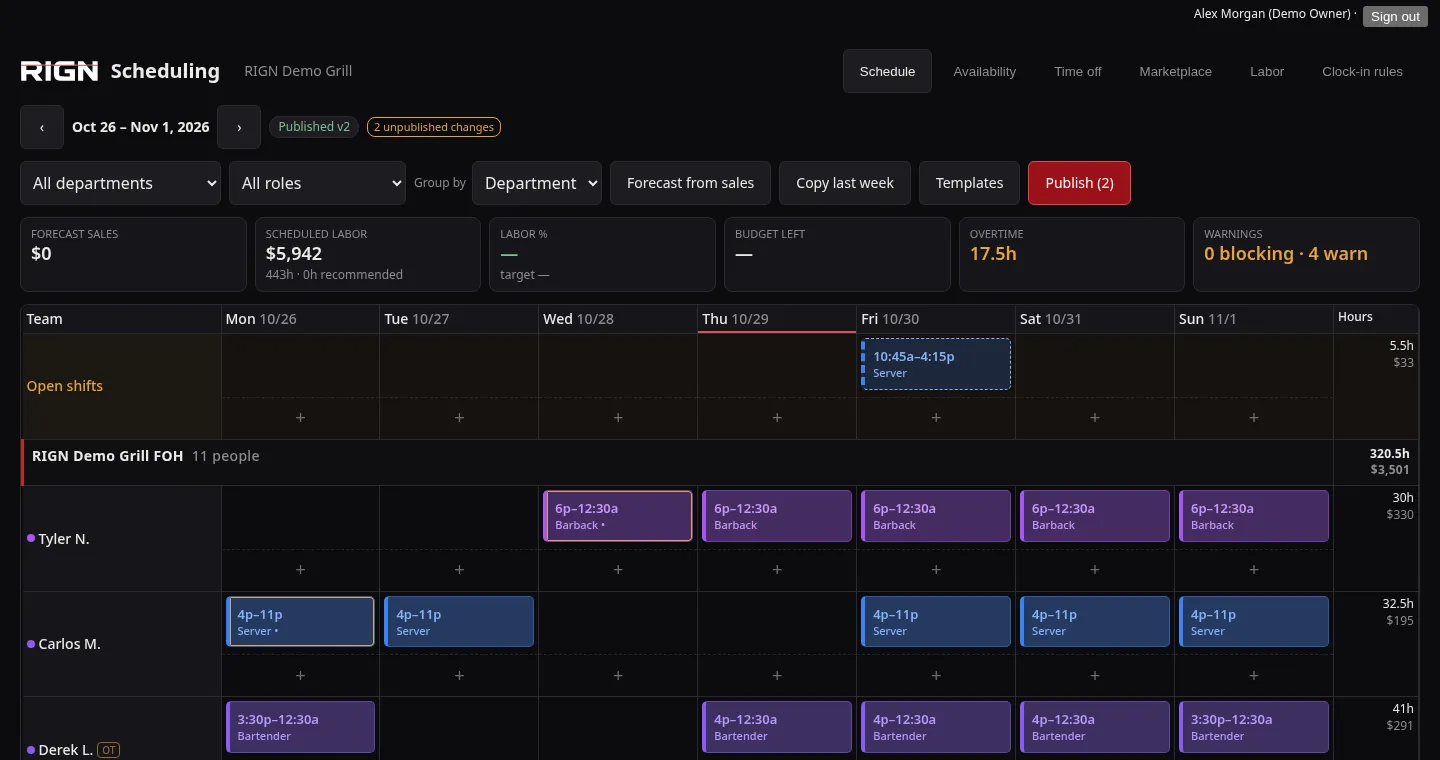
Build the schedule with labor cost as you go. Swaps, pickups and time off come to you for approval, with manager alerts for overtime, call-outs and missed clock-outs.
- Drag-and-drop shifts
- Shift swaps & pickups
- Time-off requests
- Call-outs
- Overtime alerts
- Missed clock-out fixes
- Team chat
- Server sections
See RIGN run a restaurant
RIGN is one system for your whole restaurant: the register, the kitchen screens and printers, staff schedules, tips and payouts, and the bar's TVs and sound. Everything shares the same data, so an order rung up at the register flows to the kitchen, into tips and into your reports with no double entry.
This is Demo Grill, a made-up restaurant with about two months of sample orders, staff, schedules and tips. Open any screen below and try it.
DEMO · fictional data · no real cards or customersHow a shift flows
- 1OrderRung up on the register
- 2KitchenTicket hits the kitchen screen or printer
- 3PaymentGuest pays and tips
- 4TipsSplit by your rules and paid out
- 5ReportsSales, labor and tips for the owner
Owners & managers
Run the business from anywhere.
Back office
Reports, menu, staff, tips, printers and settings in one place.
- Try this
- Approve a pending shift swap in Team chat
- View the printer & KDS routing map and printer status
- Check yesterday's sales and labor report
- Set instant tip pay rules
demo-owner@example.comDemo-dht26rAkt6MhOpen back office →Front of house
Servers and bartenders at the register.
Register
Tables, bar tabs, splits, discounts and checkout (payments are simulated).
- Try this
- Open a table, ring up an order and send it to the kitchen
- Split a check and close it with a tip
- After PIN clock-in, tap My Tips, My Schedule or Chat
PIN 2502Open register →Kitchen
Cooks and expo.
Kitchen display
Live tickets routed to grill, fry, salad, bar and expo.
- Try this
- Watch new tickets arrive by station
- Bump a ticket when it's done
Staff phones
Each employee on their own phone, with their own sign-in.
My Tips
Your own sales, tips paid out and received.
- Try this
- See your sales and tips for today or the pay period
- Set up instant pay with Zelle (mock: no money moves)
maya@example.comDemo-QMntlOd8Vxv6Open My Tips →My Schedule
Your shifts for this week and next.
- Try this
- See your upcoming shifts
- Ask for an open shift
maya@example.comDemo-QMntlOd8Vxv6Open My Schedule →Chat
Team chat, 1:1 messages and shift swaps.
- Try this
- Read the pinned team announcement
- Offer a shift to a coworker for a swap
maya@example.comDemo-QMntlOd8Vxv6Open Chat →Bar & venue
TVs, sound and lights from one screen.
Venue Control
Change TV channels, route games to screens, set zone sound and switch lighting scenes. Simulated: not connected to real equipment.
- Try this
- Unlock with the Lock/Unlock switch, then change a channel
- Send a game to a group of TVs
demo-owner@example.comDemo-dht26rAkt6MhOpen Venue Control →Demo sign-ins
Fictional demo accounts. The demo resets every night at 3 AM Pacific.
| Who | Password | Register PIN | |
|---|---|---|---|
| Demo owner Back office, Scheduling, Venue Control | demo-owner@example.com | Demo-dht26rAkt6Mh | — |
| Maya Torres Server · staff page | maya@example.com | Demo-QMntlOd8Vxv6 | 2502 |
| Hannah Kim Bartender · staff page | hannah@example.com | Demo-34FZBOgo5Owl | 6449 |
| Luis Ortega Cook · staff page | luis@example.com | Demo-9Sgu89Nr71U_ | 5591 |
| Ryan Cole Manager · register only (sections, alerts) | — | — | 2791 |
- Back office, Scheduling and Venue Control: sign in with the demo owner email and password.
- Register and Kitchen display pair like a real device: in the back office, open Devices, create a pairing code, then enter it on the register or kitchen screen. On the register, clock in with a staff PIN, which opens My Tips, My Schedule and Chat.
- My Tips, My Schedule and Chat: best on a phone. Sign in as Maya, Hannah or Luis with their own email and password; each tile opens sign-in first, then that screen.